Start signup
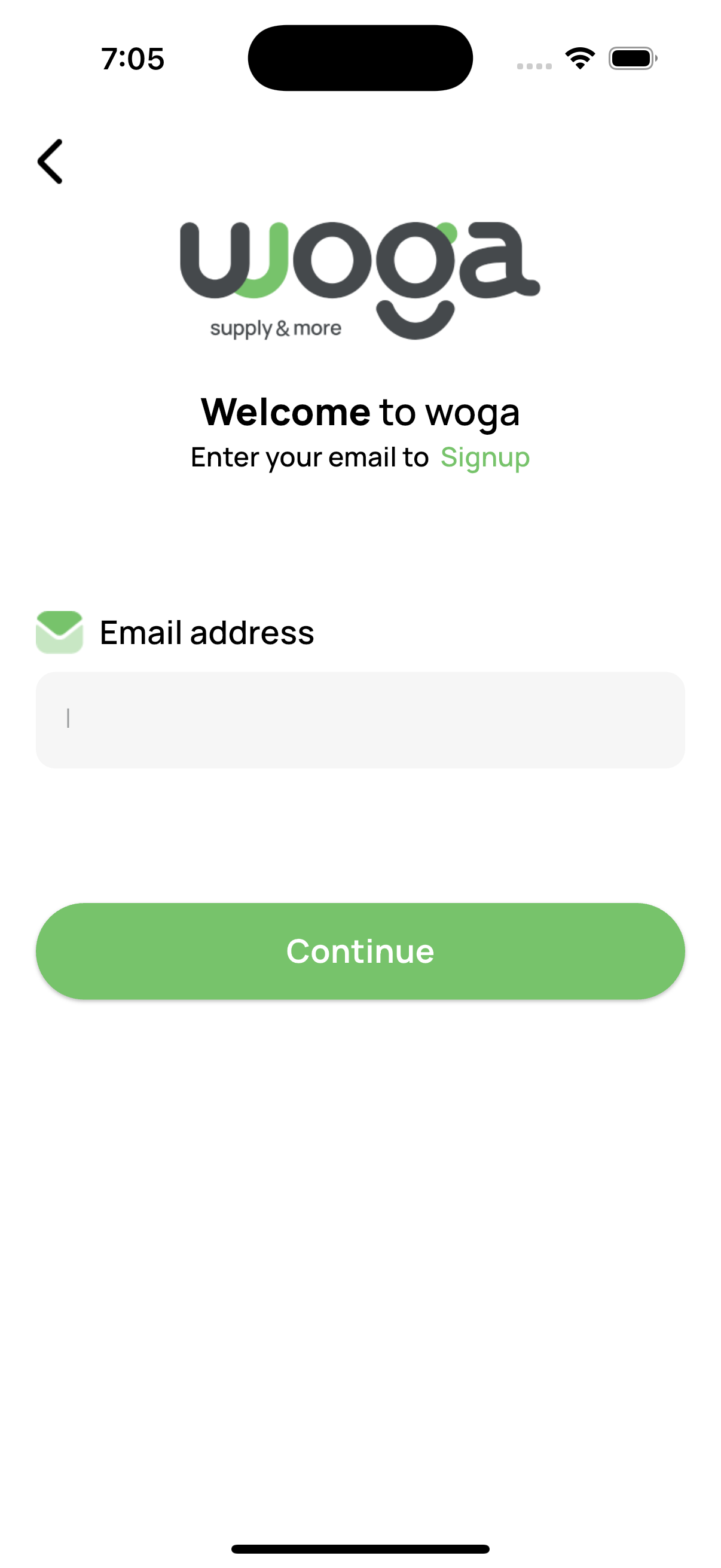
Tap Signup, enter your work email, then verify the OTP sent to that address.

Complete illustrated guide for business buyers — Company headquarters and Branch locations — who discover products and place orders in the Woga mobile app.
Woga connects F&B suppliers with business buyers. As a Company or Branch, you shop exclusively in the mobile app (not the web portal).
| Company | Branch | |
|---|---|---|
| Who | Buying headquarters | Site / outlet under a company |
| Signup | Creates company (CR + VAT docs) | Selects parent company (no CR/VAT) |
| Shop & checkout | Yes | Yes — same app shell |
| Bottom tabs | Home · Wish list · My Items · Profile | |
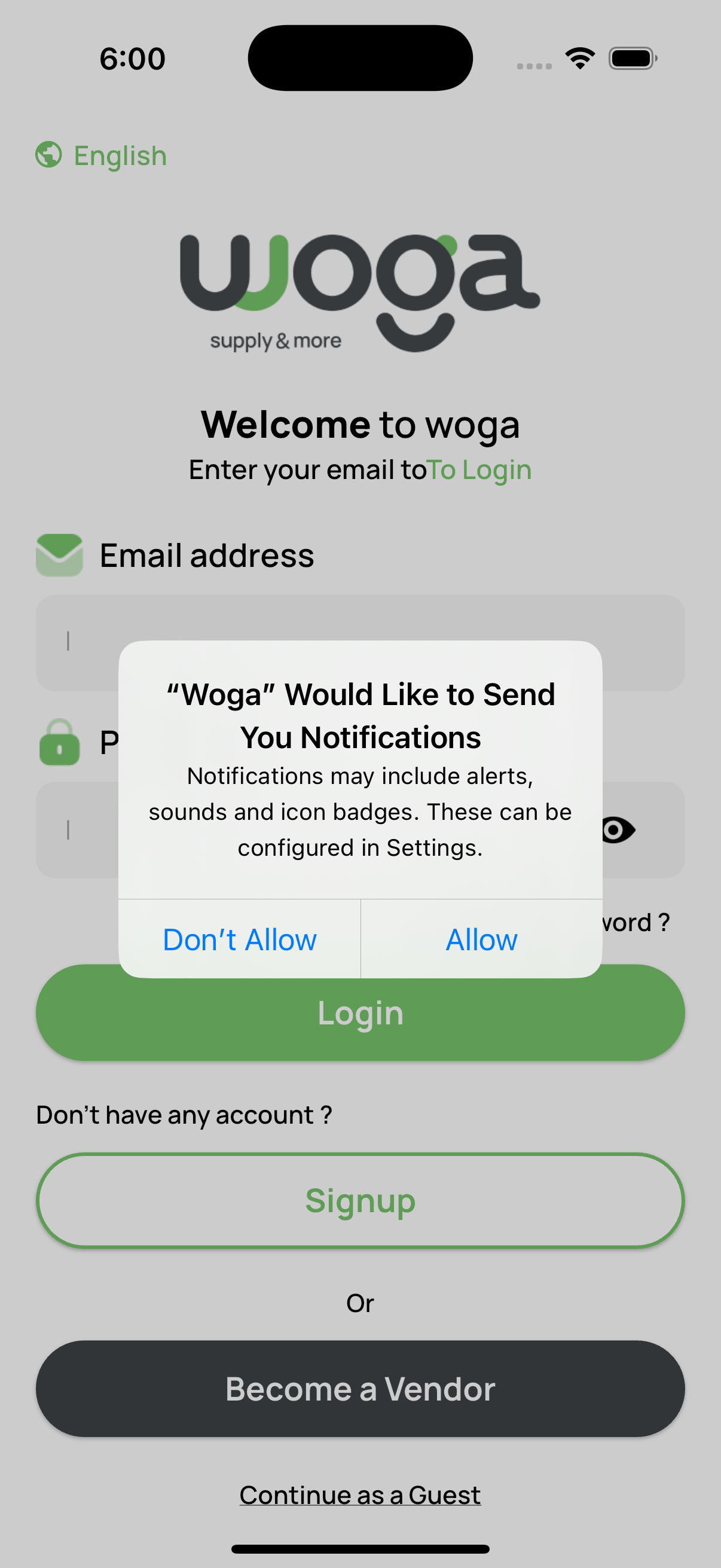
From Login tap Signup. Enter email → verify OTP → complete the account form. Choose Company or Branch on the create-account screen.
Tap Signup, enter your work email, then verify the OTP sent to that address.
Toggle Sign up as Company. Enter company name, website, address, mobile, password, plus CR number, VAT number, and the related PDF uploads.
Toggle Sign up as user / Branch. Select the parent Company from the list, enter branch name, address, mobile, and password. CR/VAT uploads are not required.
Review fields, pick the map location, then submit. You return to Login to sign in.
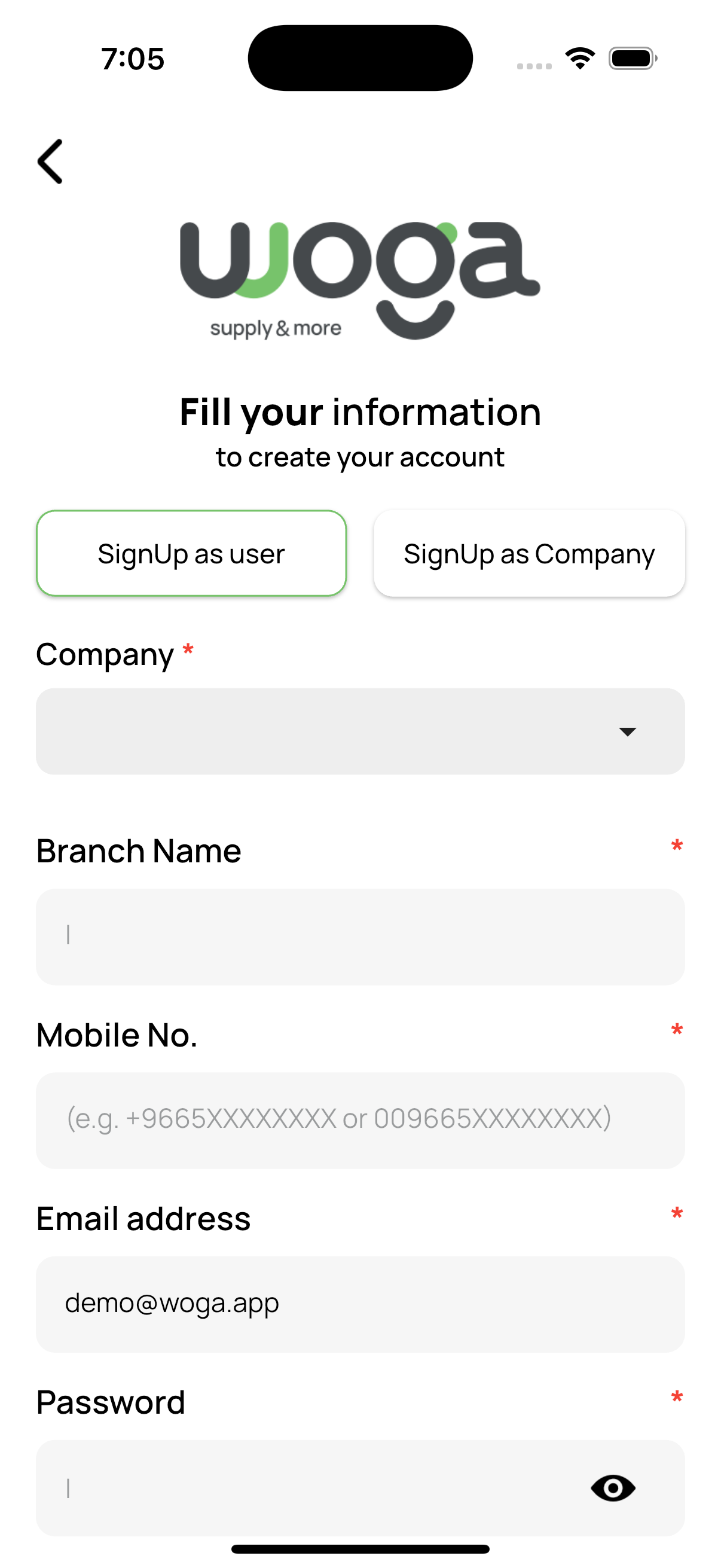
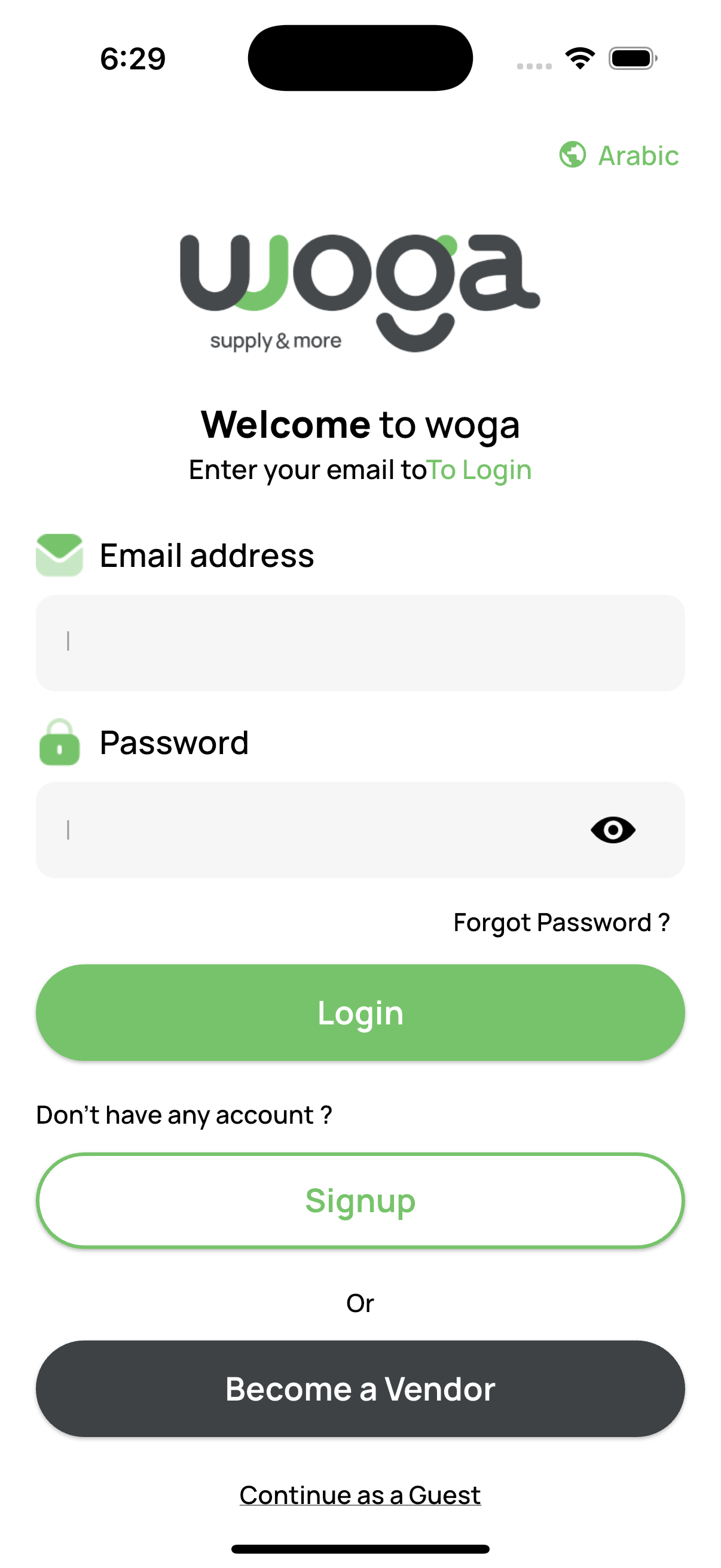
After splash, the Login screen appears. Switch language (English / Arabic) from the top globe control.
Email + password → green Login. Use Forgot Password? if needed.
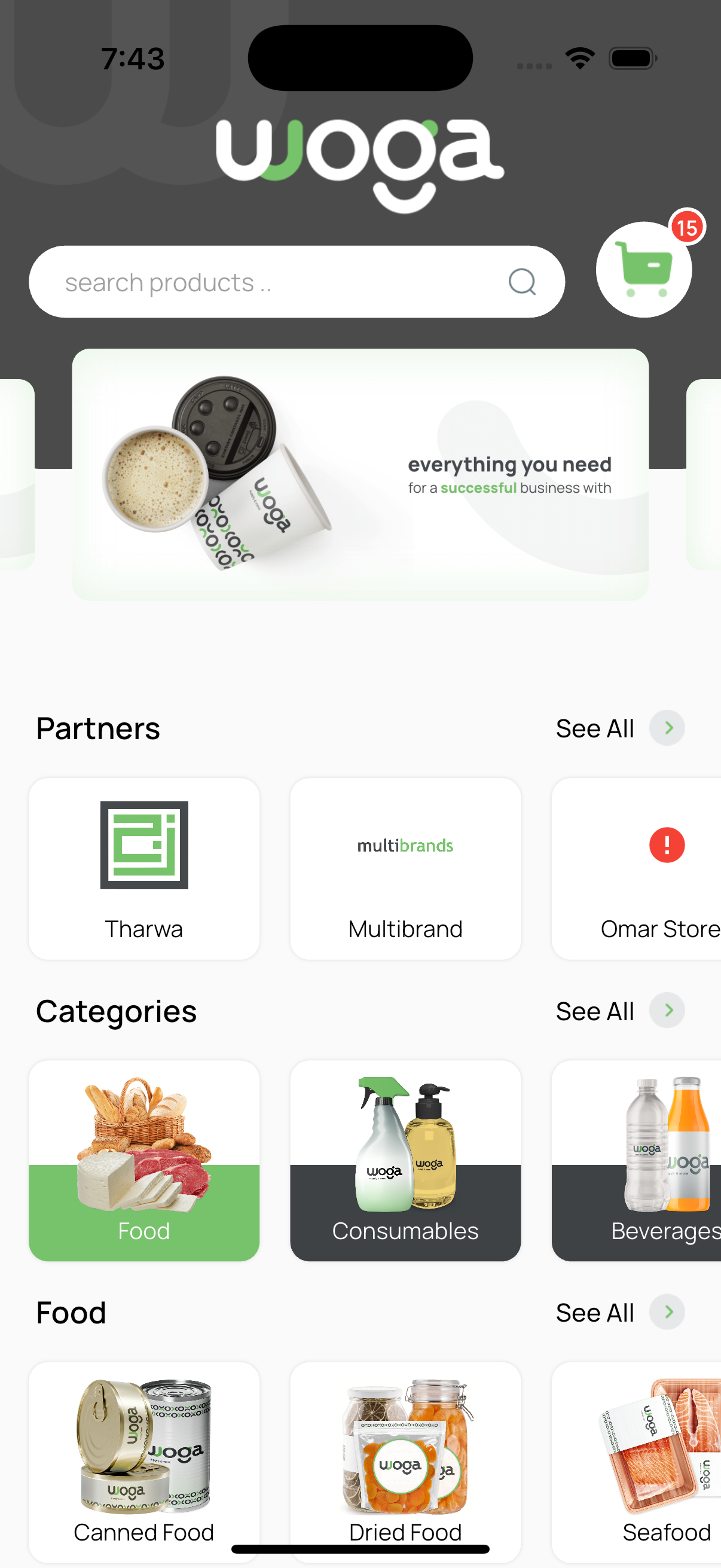
Successful login opens the buyer Home tab — search, cart, partners, categories, and deals.
This is the end-to-end path both Company and Branch buyers follow to place an order.
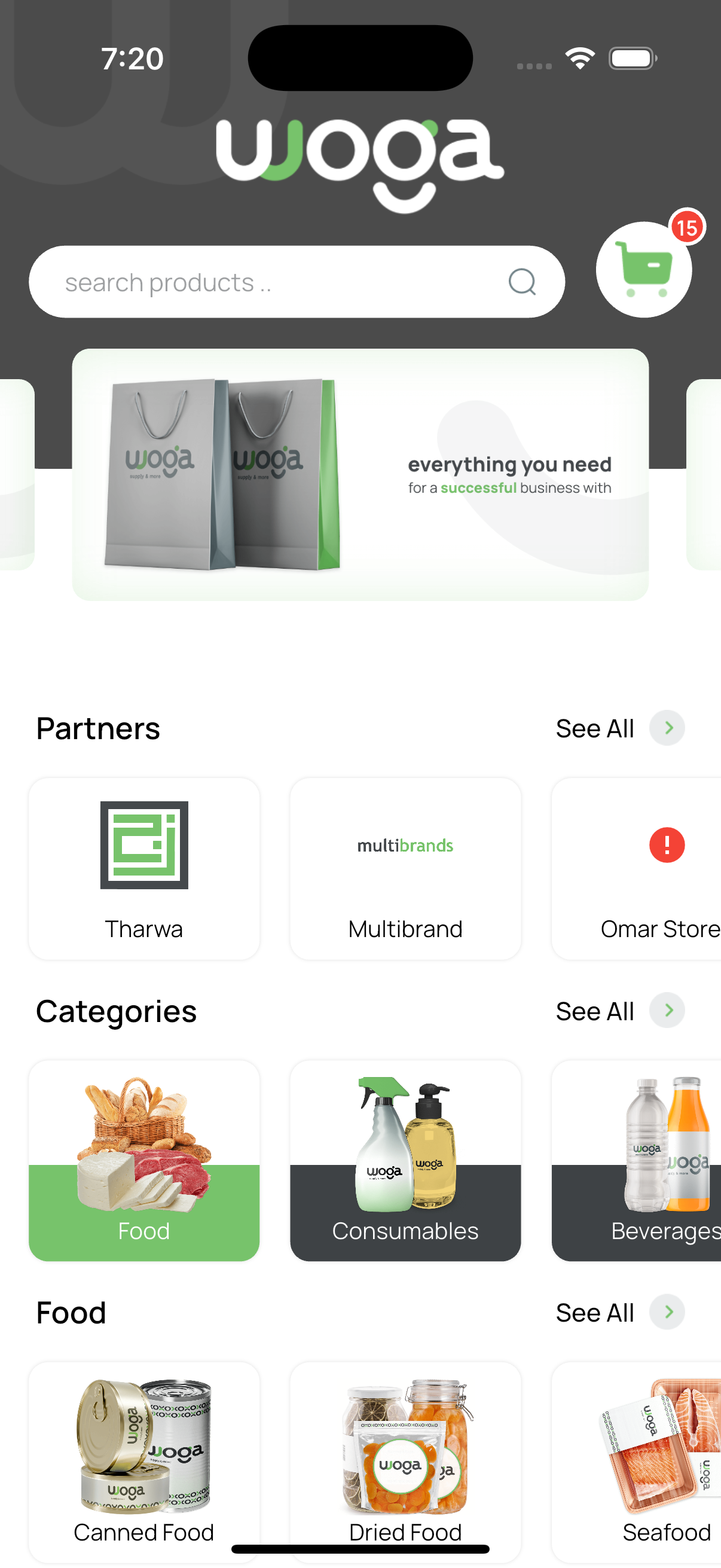
Browse banners, Partners, Categories, and product rails. Use search, or open the green cart button anytime.
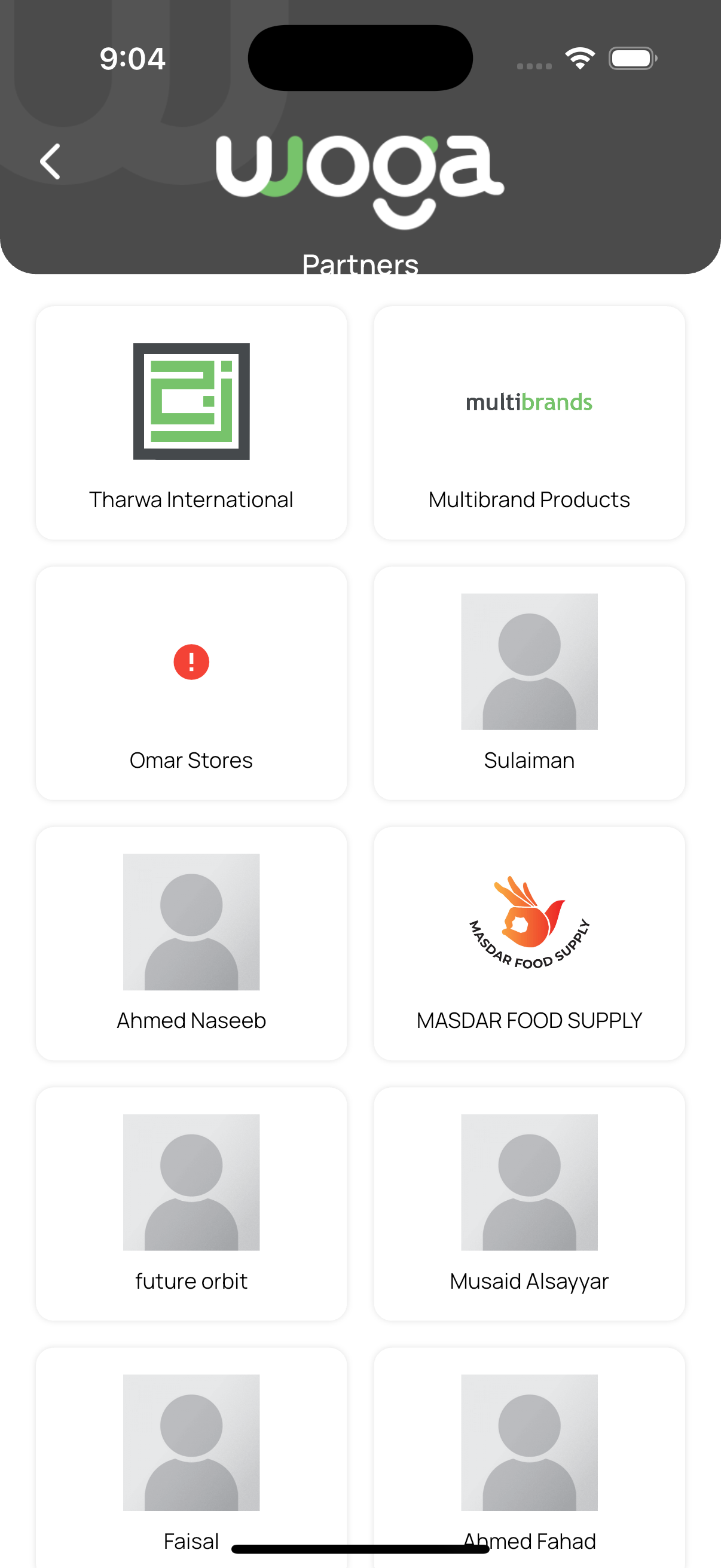
See All partners / featured vendors.
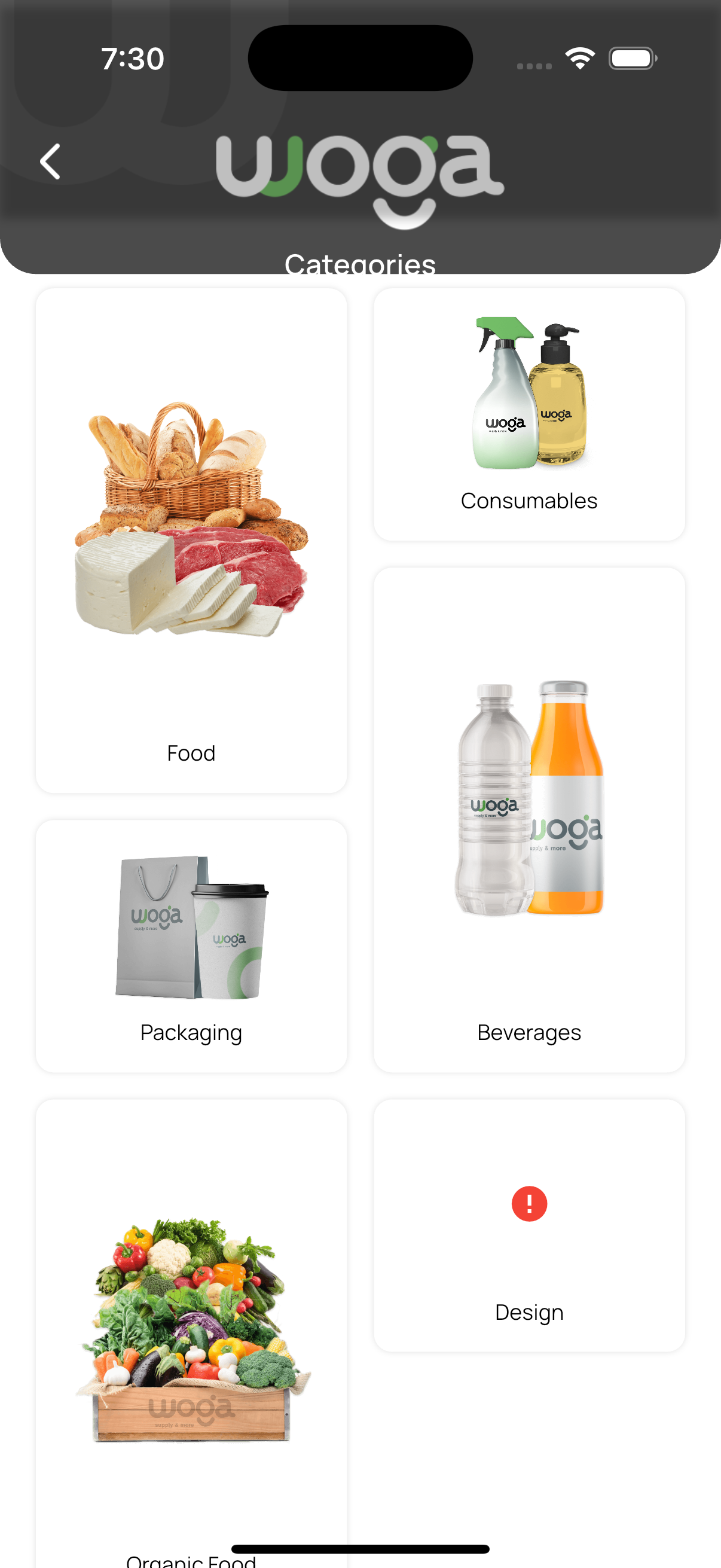
Pick a category (Food, Consumables, Beverages…), then a sub-category, then browse the product list.
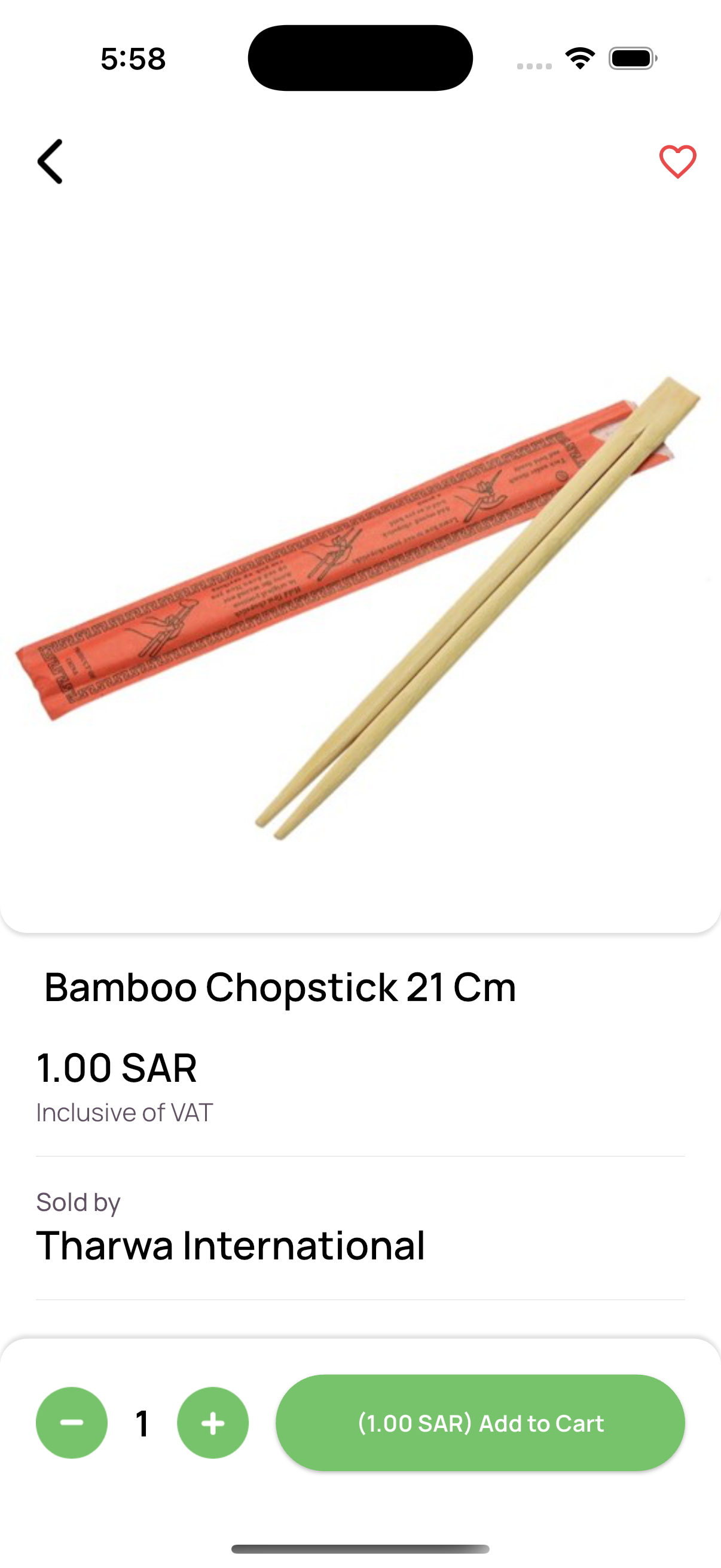
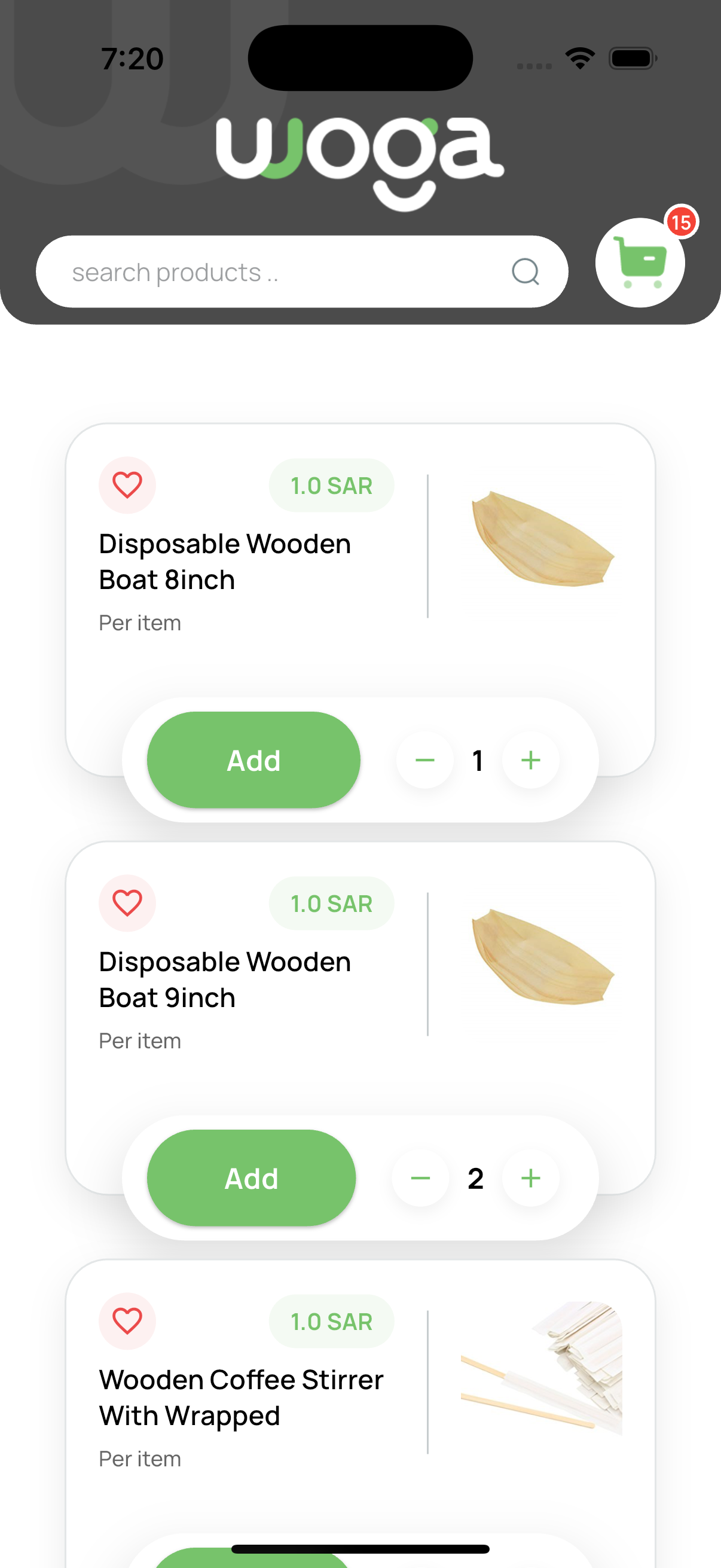
Review image, price (incl. VAT), seller name. Adjust qty and tap Add to Cart. Heart adds to wishlist.
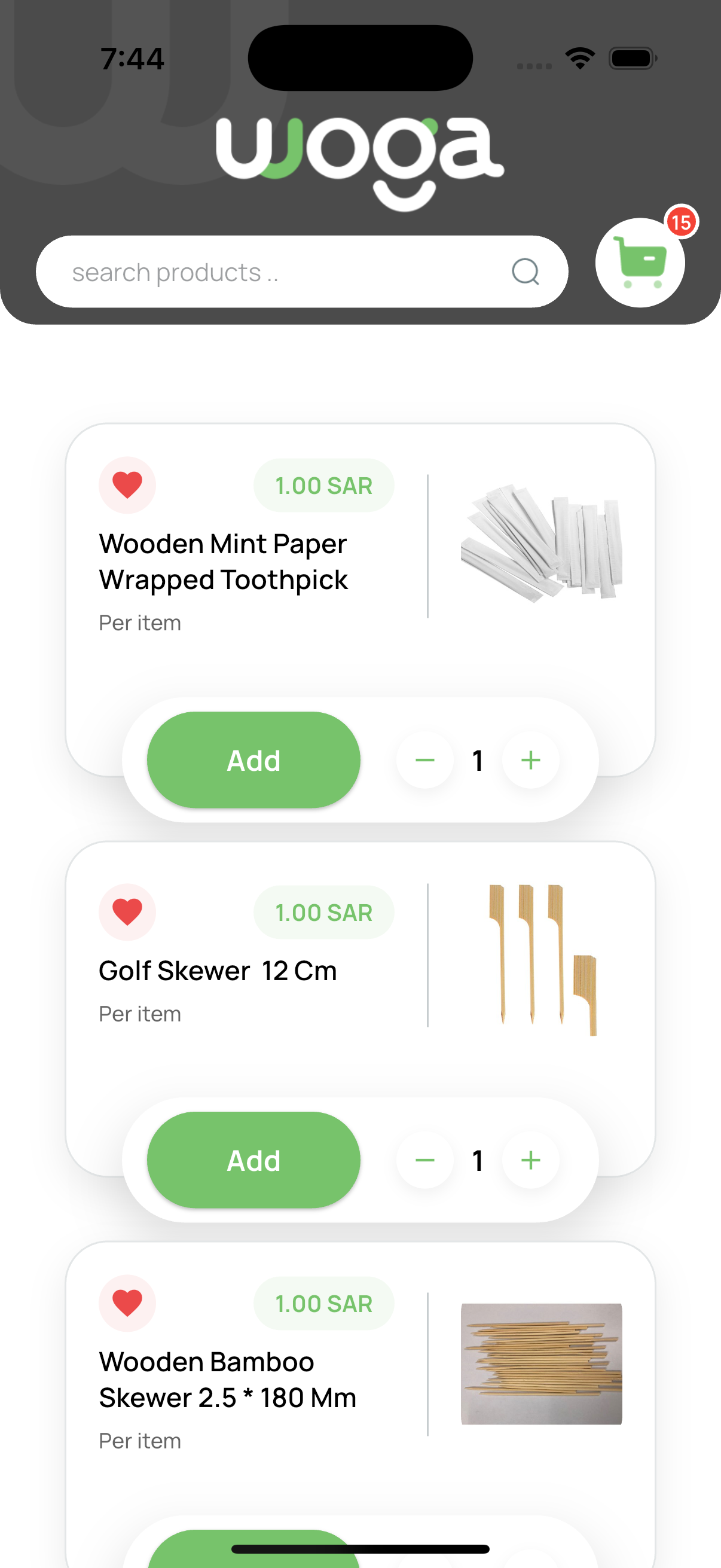
Wish list saves favourites. My Items shows items you have purchased before for quick re-order.
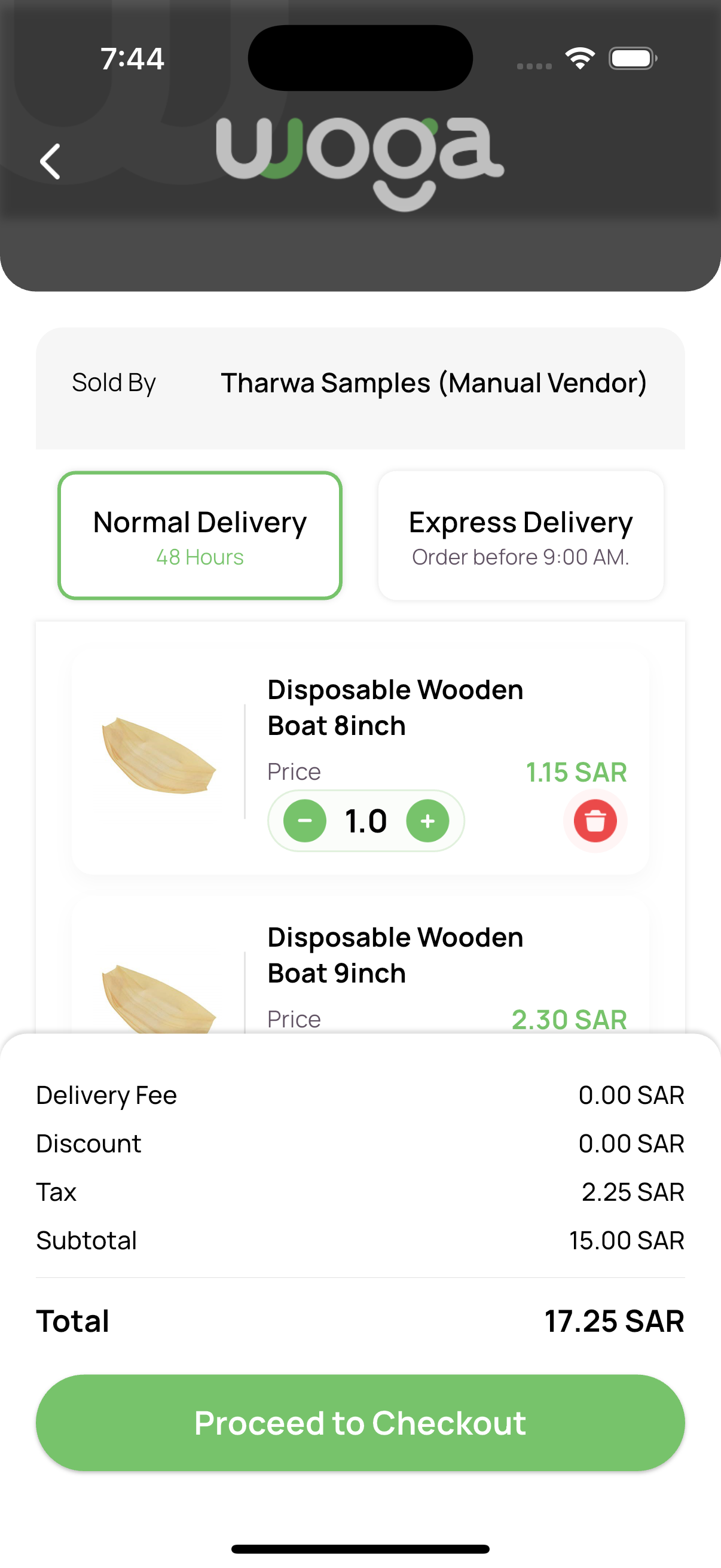
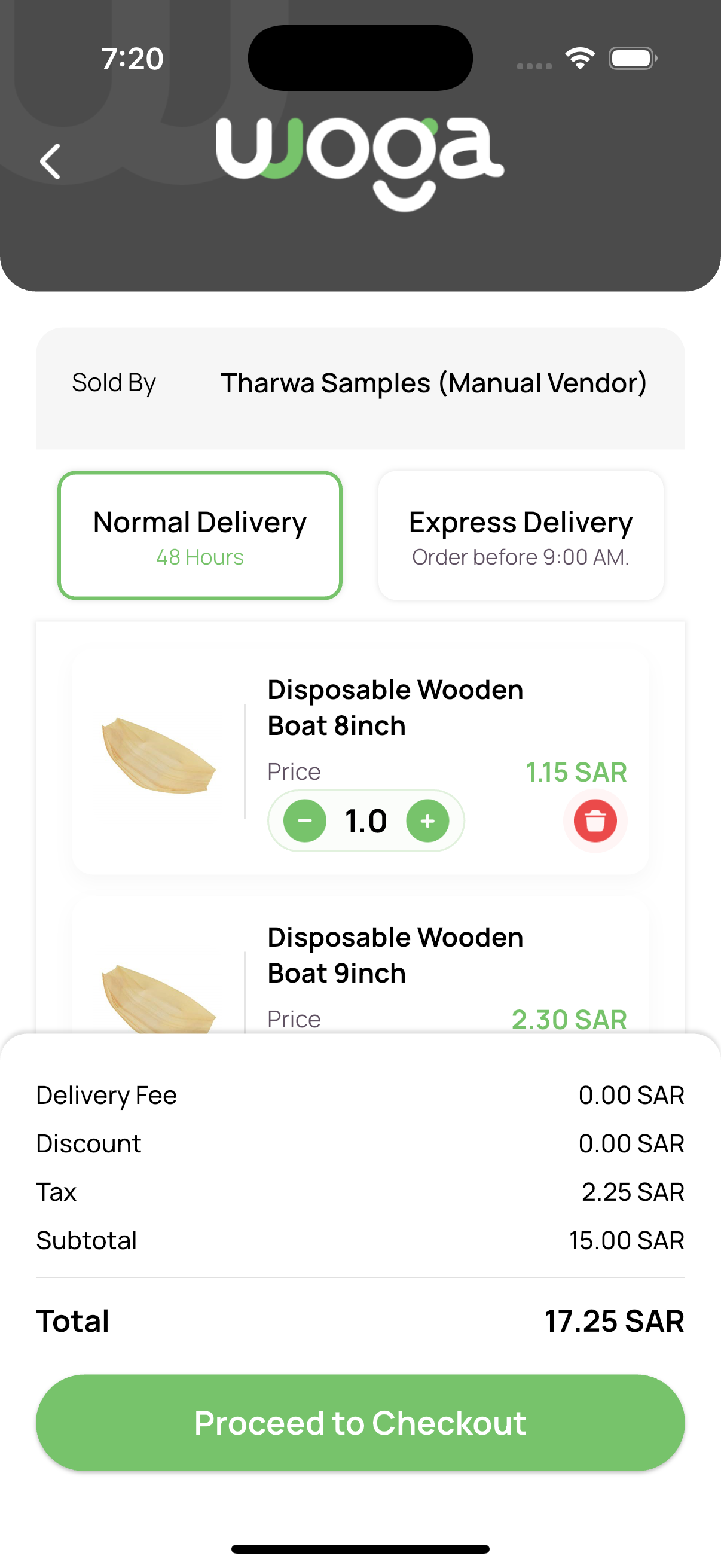
Open the cart from the home header. Adjust quantities, remove lines, and choose shipping options per vendor when prompted.
Select payment method (card / mada), optionally set recurring delivery, then Place Order. Confirm success on the order result screen.
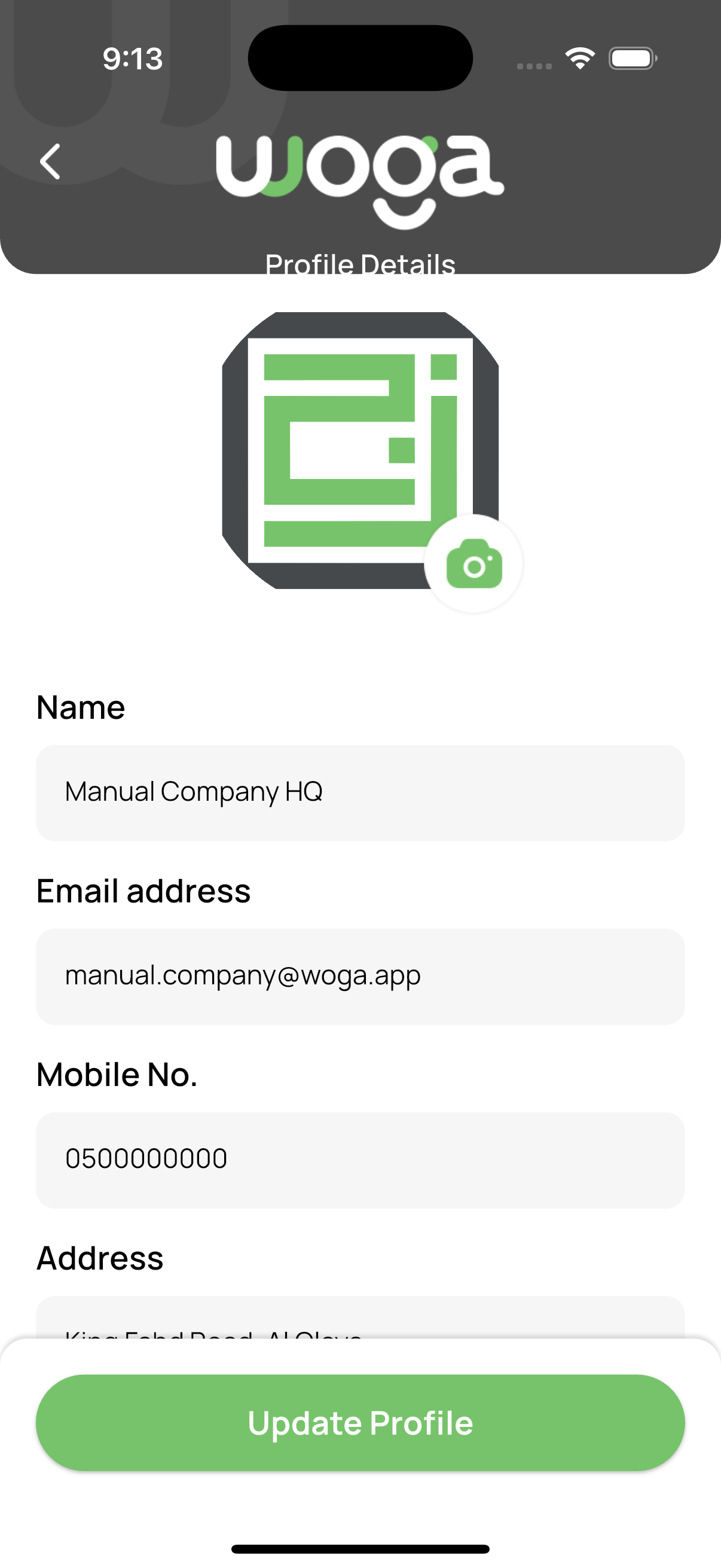
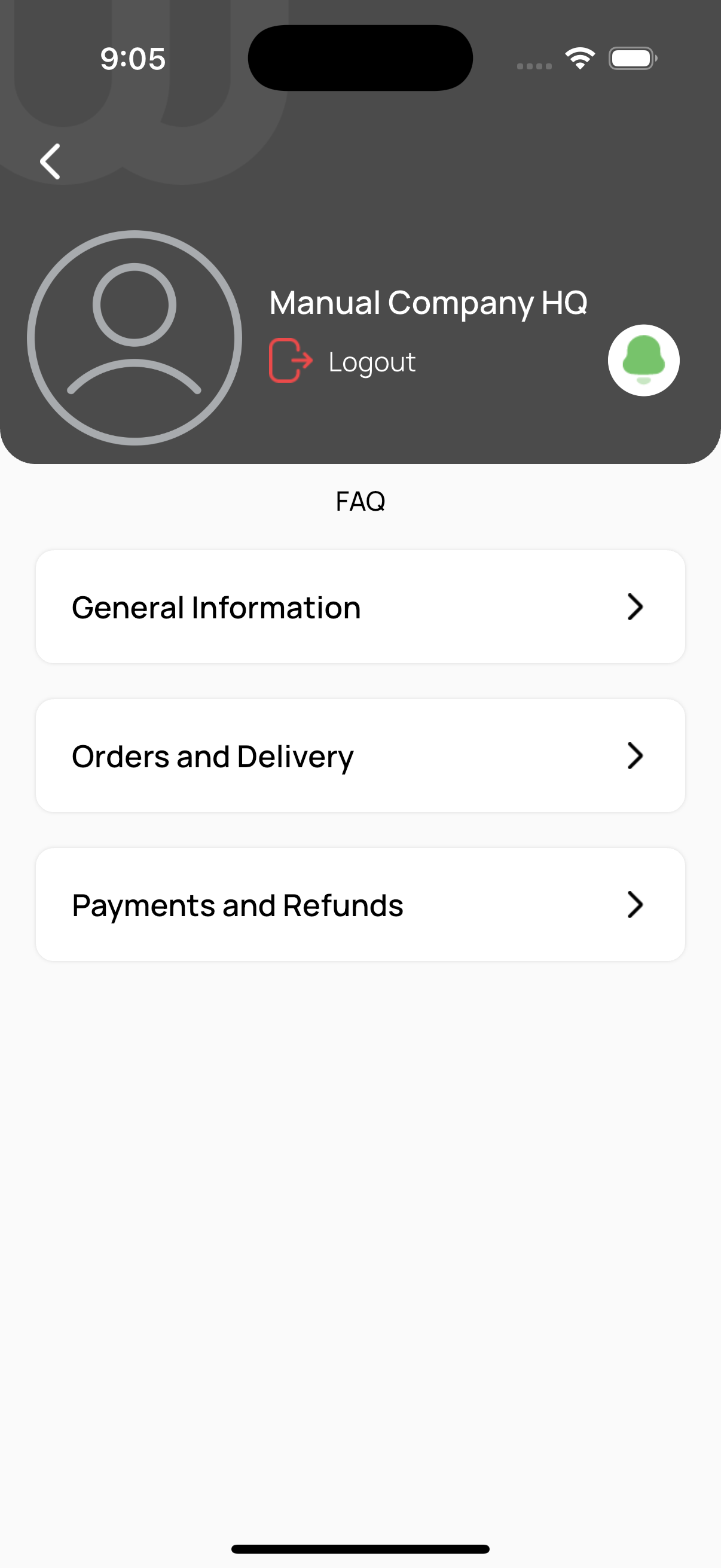
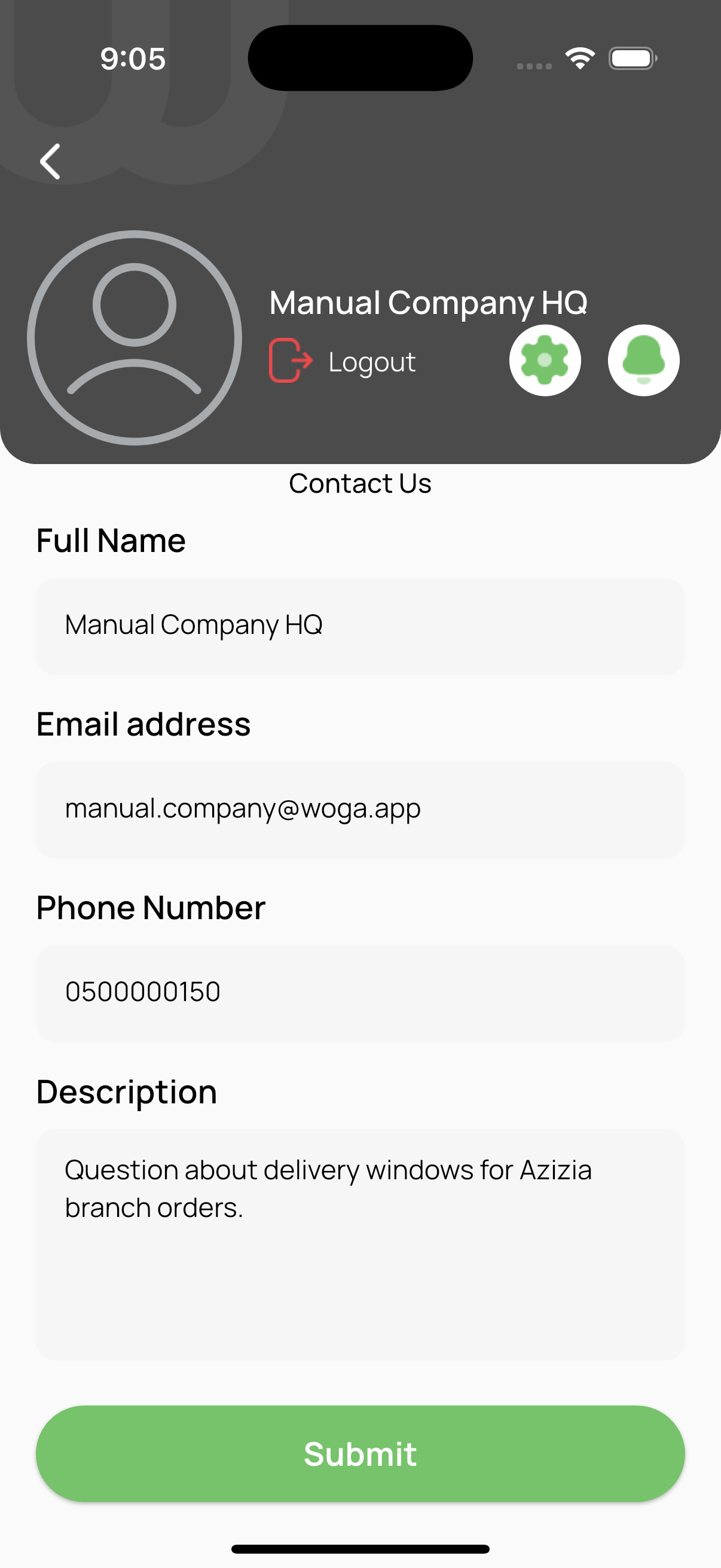
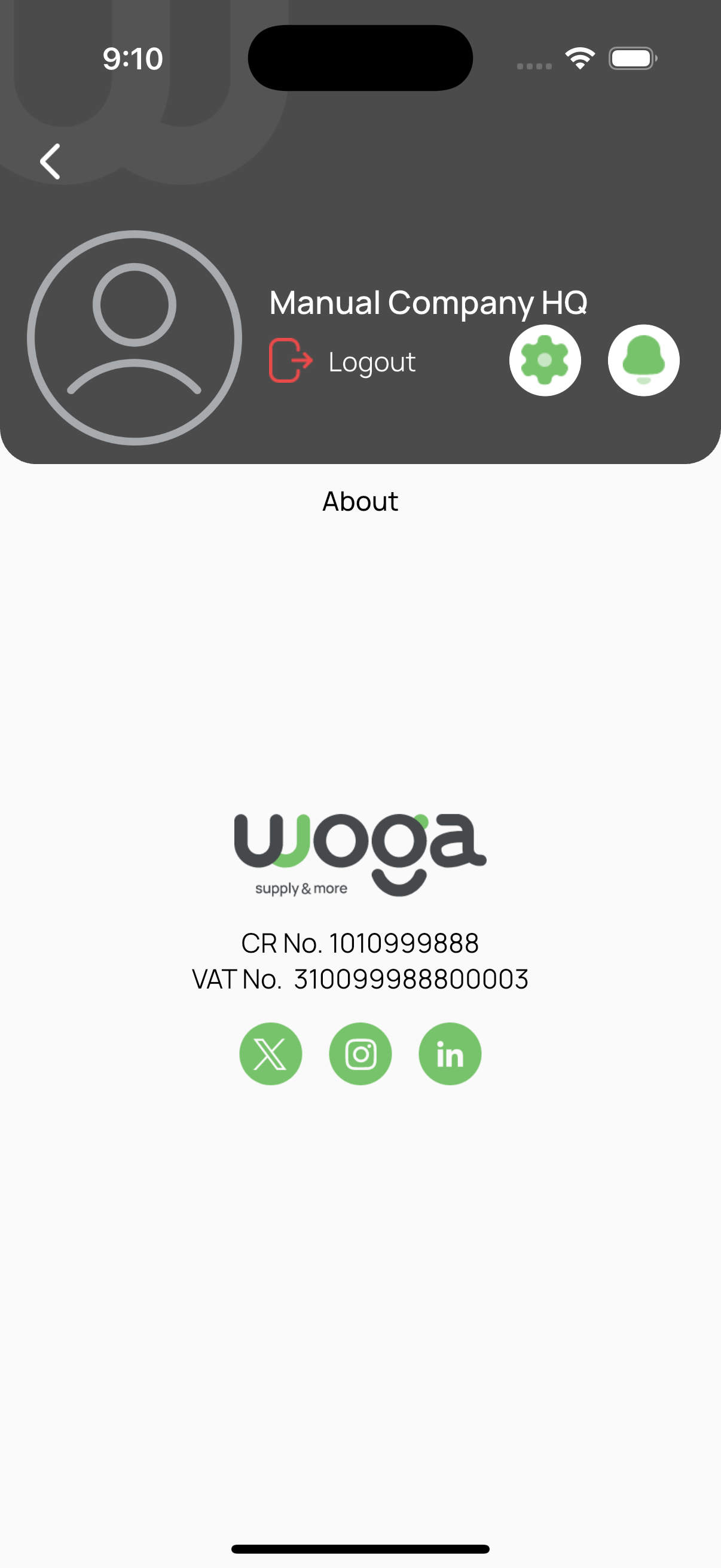
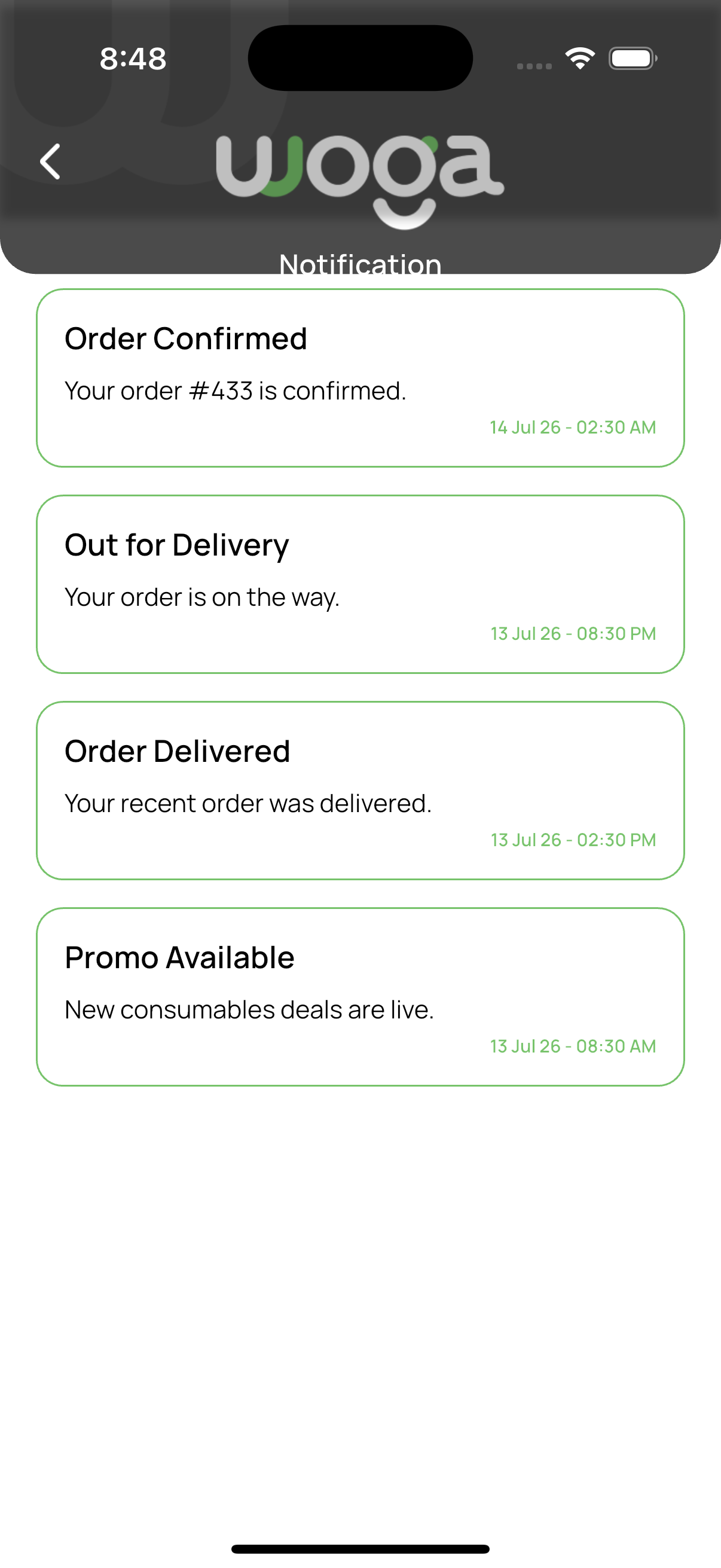
Open the Profile tab. Edit profile, view Financials (coming soon), Orders, FAQ, Contact Us, About, or Delete Account. Header icons open Settings, Notifications, and Logout.
Update account details and map location.
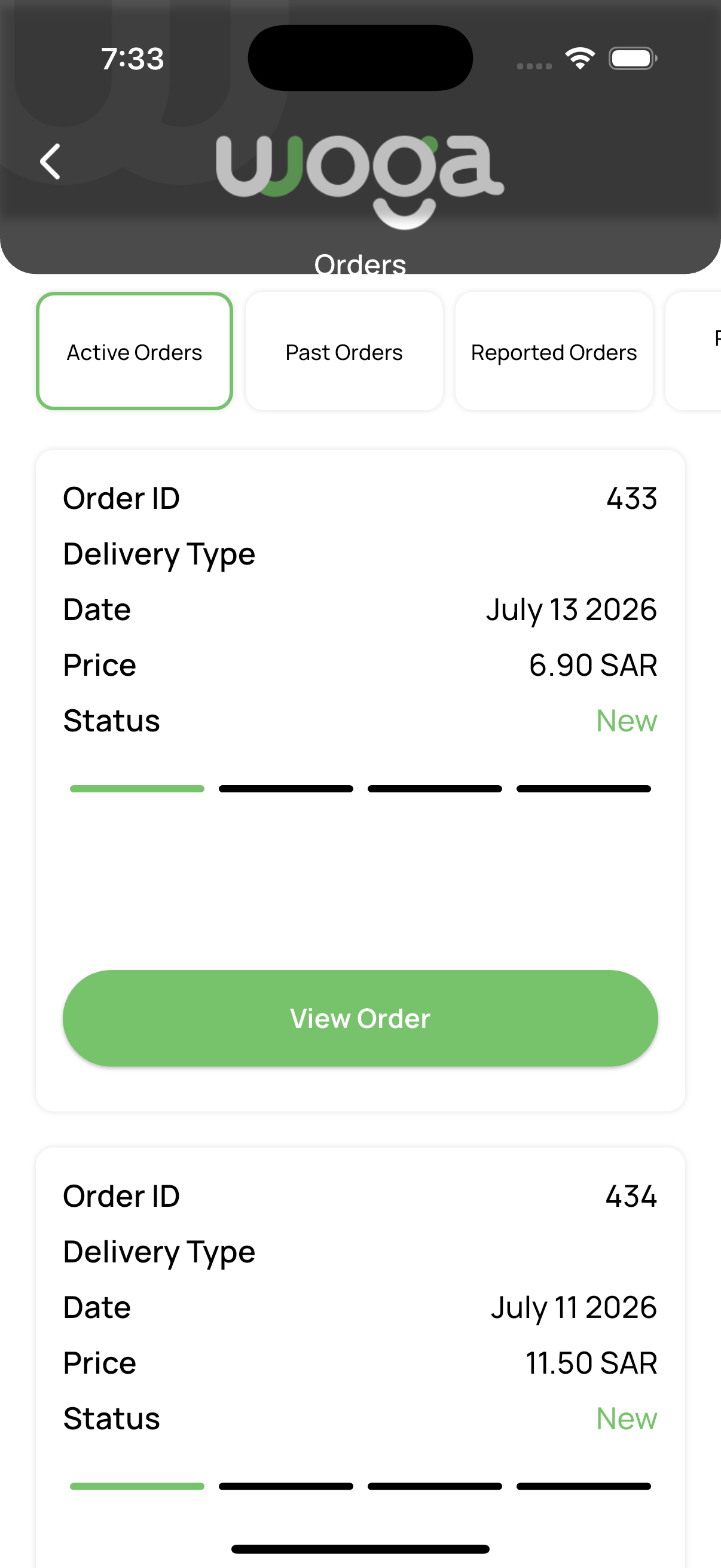
Tabs: Active · Past · Reported · Recurring. Open any row for invoice / status / report options.
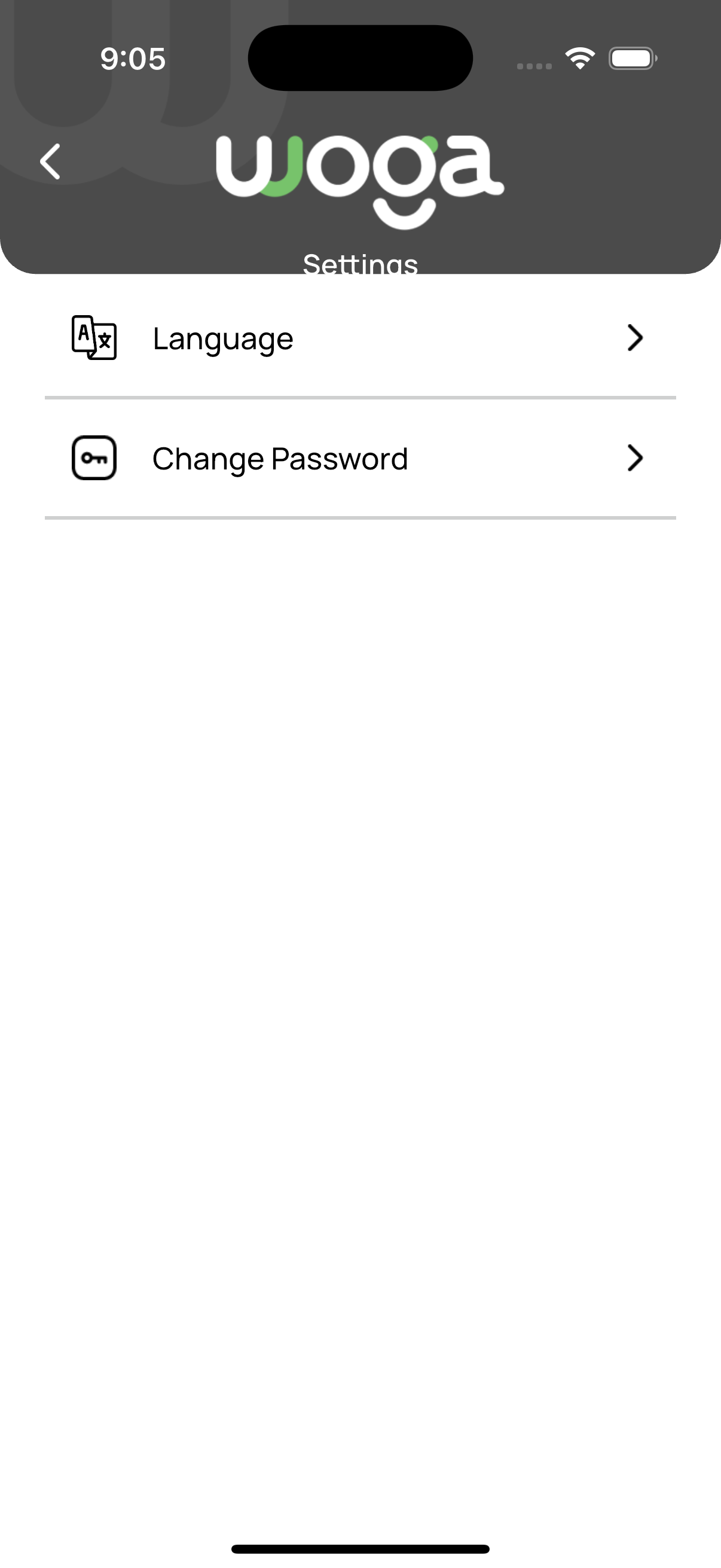
Language, change password, help content, and push notifications.
From Login tap Continue as a Guest to explore Home without an account. Guests cannot add to cart, wishlist, open My Items, or use Profile — those actions send you back to Login.